Official Guide / Quick Start
Shadowrocket Setup Guide
Import your existing details, choose Global Routing, then connect and test. Follow the steps in order the first time; if you have already completed a step, skip to the relevant section using the contents.
Order of operations: enter the details → check that a server appears under SERVER → confirm the mode → connect → test actual access. Screenshots are from the official App Store page; your current app interface may differ.
Step 01 / Add or Import
Add Server: Import Existing Connection Details
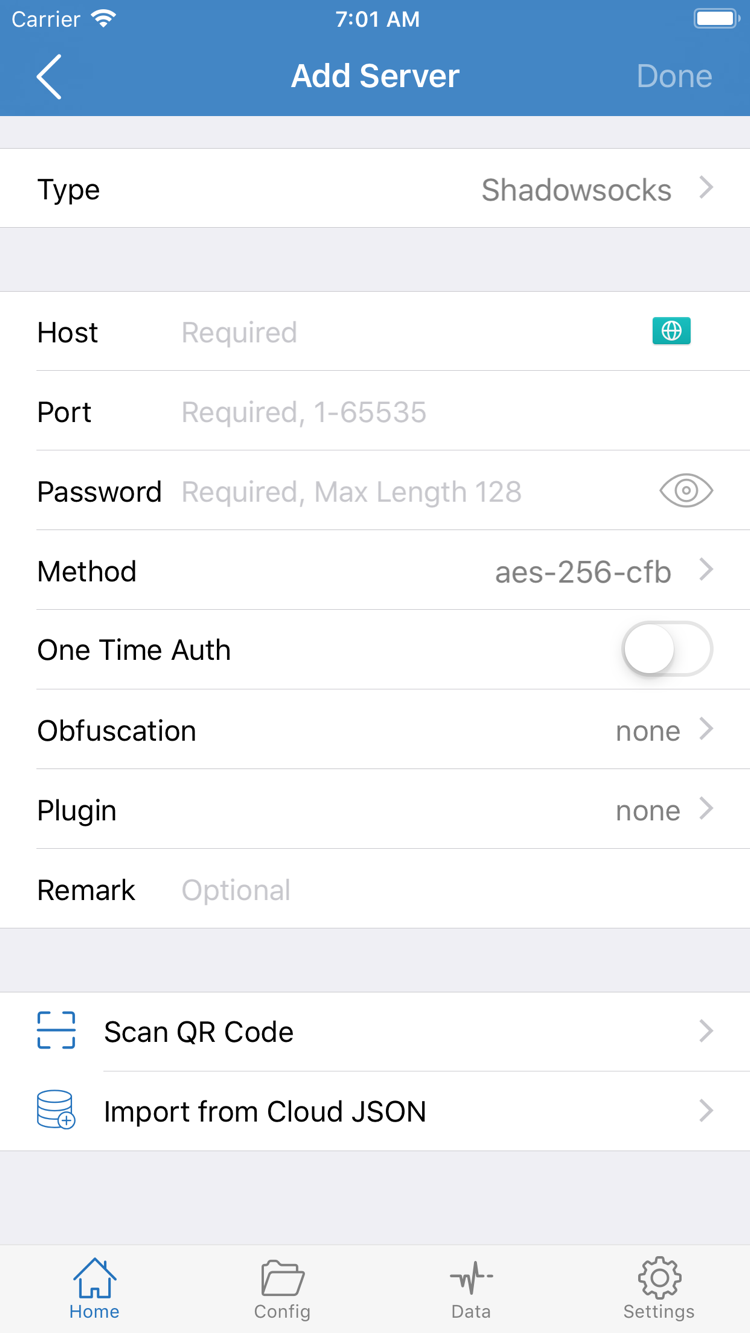
Open Shadowrocket and go to Home. The SERVER section below lists existing servers and subscription groups. If this is your first time, tap Add Server. Choose the method that matches the details you have; there is no need to import the same information twice. A subscription link provides updates to a group of server details, while a single server entry contains the parameters for one connection. The two are entered differently.
Have a Subscription Link? Use Subscribe
In Add Server, tap Type and choose Subscribe, then enter your complete subscription link in URL. If you need to distinguish between multiple sources, enter an easy-to-recognize name in a name or notes field, if available, and save. Return to Home, wait for the content to load, and check that server entries appear in the relevant group. If the link is saved but no entries appear, troubleshoot the subscription retrieval first; do not move on to connecting yet.
Copy the entire link, including all parameters, and avoid pasting any explanatory text, leading or trailing spaces, or line breaks. Do not use a provider's website address as the subscription URL. A link may contain account-identifying information, so copy it only from a trusted source you control. Do not show the full link in public screenshots when troubleshooting. Once retrieved, the server list reflects the content returned; later updates may add or remove entries.
Have Details for One Server? Enter the Parameters for Its Type
Return to Add Server, choose Type based on the details you have, then enter Host, Port, and the authentication parameters required by that protocol. The screenshot shows fields such as Password and Method, but protocols do not all use the same fields. Enter the server address in Host and the corresponding port in Port. Authentication, encryption, and transport settings must match the server; do not guess based on how a field looks.
If your details are provided as a QR code, use Scan QR Code to read it, then check Type and the key fields. Import from Cloud JSON is only for details in the corresponding format; it is not a universal way to import every kind of link. After saving, return to Home and confirm that the entry appears under SERVER. This only confirms that the details were added; you still need to test whether a connection can be established. If a field is unclear, check the glossary rather than repeatedly changing parameters without checking the original details.
Step 02 / Choose a Mode
Global Routing: Confirm How Connections Are Handled
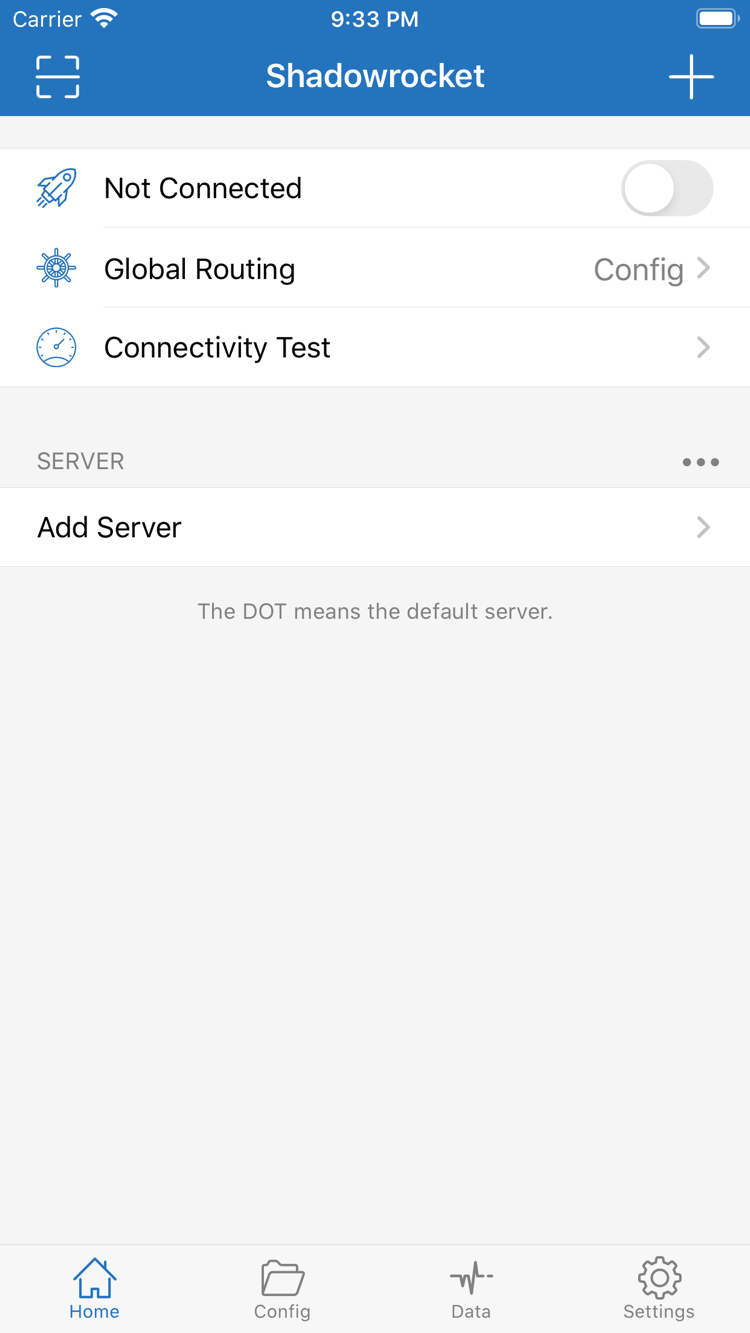
Once an entry appears under SERVER, do not turn on the connection switch just yet. On Home, tap Global Routing to check the current mode. This determines how requests are handled. Selecting a server and choosing a routing mode are separate actions: selecting a server does not automatically change a Direct policy to Proxy.
Config: Follow the Current Rules
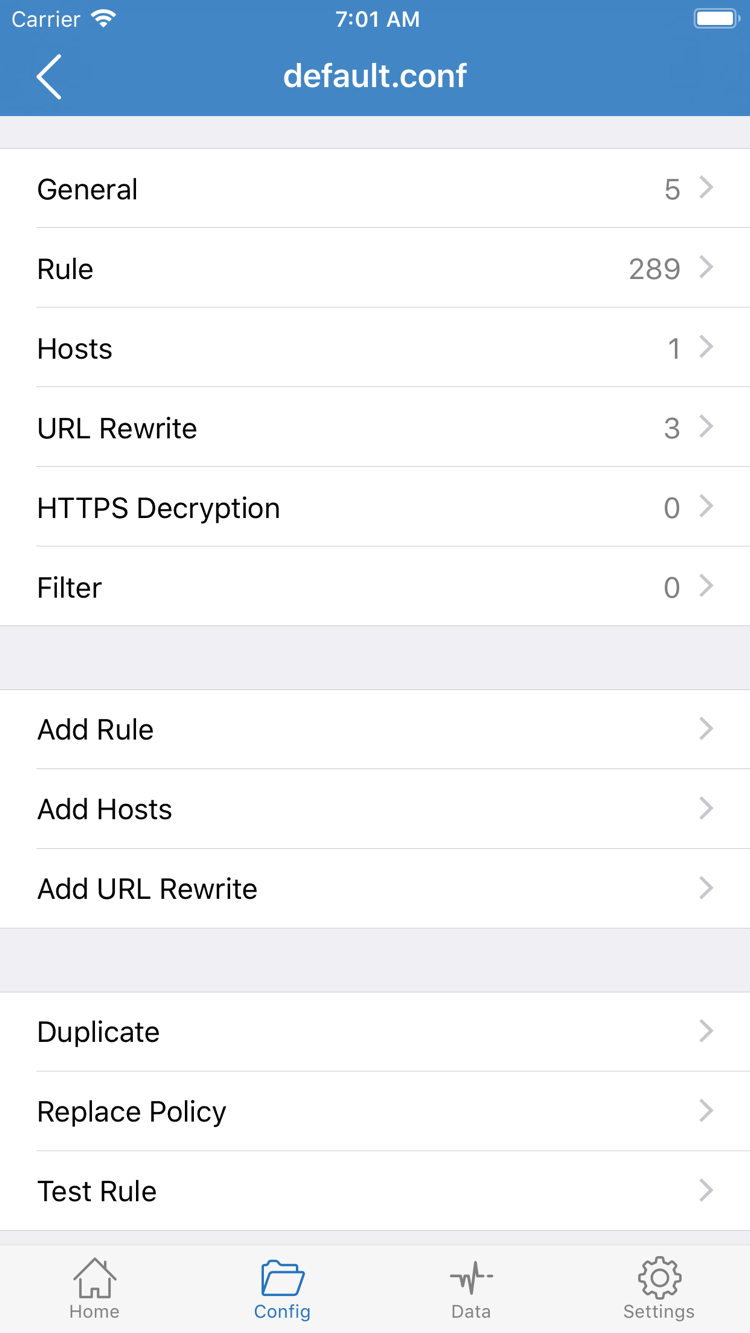
Config uses the rules in the active configuration file to determine how requests are handled. Open Config, confirm that the configuration you want is selected, then review the policies under Rule. The Config page is for managing configuration files; Config in Global Routing means using the configuration's rules. The labels are the same, but the two controls have different purposes. Importing a Subscribe link does not replace checking the active rules.
For example, a rule might send a domain through PROXY and an IP range through DIRECT. The result depends on the rule content, order, and policy references. When getting started, you do not need to edit each section shown in the screenshot—General, Hosts, URL Rewrite, or HTTPS Decryption—or enable extra features just to connect. If you already have a working configuration, leave it as is, verify the basic connection first, and learn the specific rules afterward.
Proxy and Direct: Know What You Are Testing
In Proxy mode, requests are handled by the selected proxy server according to that mode's behavior. This can help reduce interference from rule differences during an initial test, but it does not guarantee that every system request is handled. Direct mode handles requests directly, without using the selected proxy server. If you want to test a newly imported server, Direct mode will not do that.
For your first test, note the current mode, temporarily switch to Proxy, and check the connection and access. Then switch back to the Config you want to use. Test again after switching back: server availability and correct rules are separate things. If you do not have rules ready, review the active configuration first; do not import an unknown file just to make the mode display Config. See the glossary for rule keywords and Config settings for managing configuration files.
Step 03 / Connect
Home: Select a Server and Turn On the Connection
Return to Home and select an existing server under SERVER. If a subscription contains multiple entries, choose one to test first instead of switching between several. Then check Global Routing again to make sure it is still set to the mode you chose in the previous step. An entry name is just a label; it does not indicate connection quality, protocol settings, or current availability.
Tap the connection switch at the top of Home. The first time you connect, the system may ask to allow adding a VPN configuration. This lets Shadowrocket create a system network configuration; it is not another app purchase or proof that the subscription has been validated. Check the app identity in the prompt, make sure it follows an action you initiated, and complete device authentication as required by the system.
After authorization, return to Home and check whether the switch and connection status have changed. Not Connected in the screenshot means the app is not connected yet; it is not text you need to enter. If you previously denied authorization, the switch may not stay on. Start the connection again and respond to the system prompt instead of importing the same subscription again. If device management restrictions are in place, the system may not allow the required configuration; check your device permissions first.
If another VPN connection is already active, check the active connection in system settings before returning to Shadowrocket to try again. This can help avoid confusion if connections are switching. For your first test, leave On Demand unconfigured; automatic triggers add extra variables. Once you can reliably connect and disconnect manually, learn about on-demand connections if needed.
A switch that is on only indicates that the connection process has reached a certain state; it does not prove that server authentication, access to your target, or all rules are correct. Do not stop here. Keep the same server and mode, continue to the next step, and run Connectivity Test. Then confirm the result with actual access. If the switch immediately turns off, note the system prompt or error and go to troubleshooting.
Step 04 / Test the Connection
Connectivity Test: From a Test to Real-World Access
Keep the connection on and tap Connectivity Test on Home. Wait for the test to finish, then review the result. Whether it succeeds depends on the test method: it may only reflect a specific probe target or handshake, not whether every webpage is accessible. A displayed duration is not your actual download speed, so do not use one number to judge the overall connection experience.
Next, open a browser and visit a webpage you normally use. Make sure the content reloads rather than appearing from the browser cache. Check another familiar site to distinguish an issue with one site from a general access problem. If useful, compare what happens before and after connecting, but do not rely on a change in one page's appearance alone.
In Config Mode, Test the Rules Too
If you used Proxy in the previous step to reduce variables, switch back to the Config you plan to use, then repeat the same access checks. If something works in Proxy but some destinations fail in Config, check rule matching, policy references, and domain resolution before removing the server. Conversely, a page opening in Direct does not prove that the proxy server works; the request may not have used it at all.
To check how a specific request was handled, review the app's connection records or diagnostic information for that visit. Use the destination domain, time, and matched policy to interpret the result. DIRECT and PROXY in the records indicate different handling methods; a system VPN indicator alone cannot tell you which rule a request matched. See the glossary for details such as rule order; this page focuses on completing a basic verification cycle.
Finally, disconnect manually, reconnect, and repeat the same test. Continue adjusting more detailed settings only after both attempts produce consistent results and actual access works. If the test fails but webpages work, check the test method and target first. If the test succeeds but webpages do not load, keep the current settings and note the failed domain, time, and message, then troubleshoot in the next step. Change only one setting at a time so you can connect each change to its result.
Step 05 / Troubleshooting
Settings: Check Each Part of the Setup
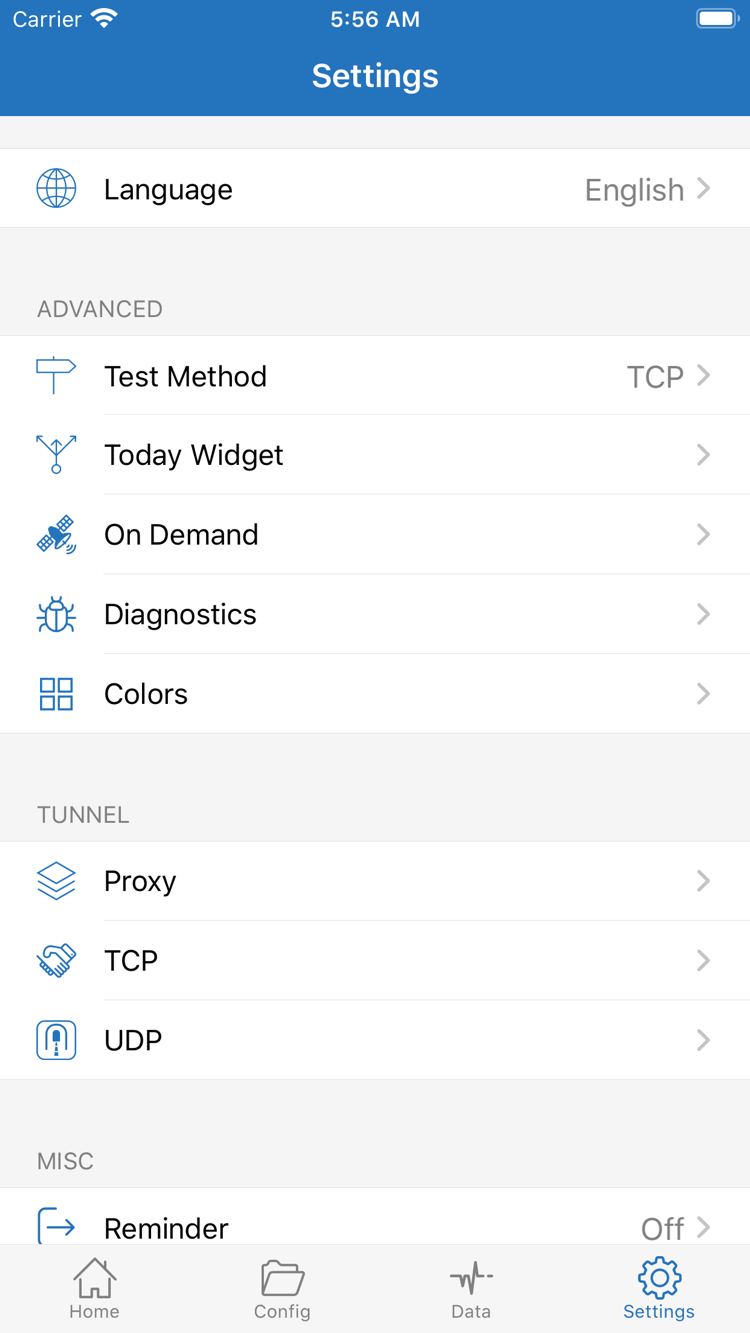
First identify where the failure occurs: the subscription was not retrieved, the server will not connect, the switch will not stay on, or only some webpages fail. Each requires a different approach. Keep your existing entries and configuration, note their original state, and do not delete everything as a first step. In Settings, you can find Test Method, On Demand, Diagnostics, and settings for Proxy, TCP, and UDP. Check only the options related to the issue you are seeing.
Subscription Update Failed? Check the Link and Network
If no entries appear on Home, recheck the complete Subscribe link and make sure it has not expired or been replaced and that no parameters were missed when copying. Confirm that your current network can reach the service associated with the link, and check with your provider that the subscription is still valid. A failed retrieval is not the same as a failed connection to an individual server; changing that server's Port or Method usually will not help. See subscription troubleshooting for more.
Entry Exists but Won't Connect? Check the Server Details
Open the entry and compare its Type, Host, Port, and authentication details against the original information. Match TLS, transport, server name, and other parameters whenever they are specified. Do not remove an existing value just because its field looks optional. You can compare with another server you already have, but test only one at a time and record the result to avoid mixing up the behavior of different entries.
Switch or Access Problems? Check the System, Rules, and Network
If the switch will not stay on, first check VPN configuration authorization, system prompts, and device restrictions. If the switch stays on but every destination fails, check the selected server and local network. Switching once between your own Wi-Fi and cellular network can help determine whether the issue is related to your current connection. Switching networks may incur data charges, so check your plan first.
If only some destinations fail, check Global Routing and the rules in Config first. If only Connectivity Test fails, open Settings and review Test Method, including the selected method and its limitations. Do not change multiple settings such as DNS, TCP, and UDP just to make one test pass, and do not disable authentication checks. Note the original value before each change and restore it if the test does not improve.
For further diagnosis, check the items available in Diagnostics. Before sharing an error, hide subscription links, passwords, authentication identifiers, and addresses that do not need to be public. Include only the relevant error text and steps to reproduce it. For connection issues, see connection troubleshooting. For installation, storefront region, or restoring a purchase, see the App Store installation guide instead of changing connection settings.
After basic troubleshooting, return to Home and test again with the same server, mode, and destination. Reproducible steps are more useful than changing many settings at once. For everyday use, keep the configuration that you have verified works. To learn about On Demand or more detailed rules, read Features and Settings and add options one at a time rather than enabling everything at once.